Introducing the tutorial page: get participants set up before the first question
Add a page before your first question with setup tips, a microphone test, what the answer timer means, and what to do if something goes wrong.
The first minute of a voice interview is where things go wrong. The microphone is muted, the browser picked the wrong one, or the participant has never answered questions out loud to a computer before. By the time anyone notices, the first answer is lost, or the participant has given up.
The new tutorial page gives participants a moment to get ready. It sits between your welcome page and the first question, and it stays off until you turn it on.
What participants see
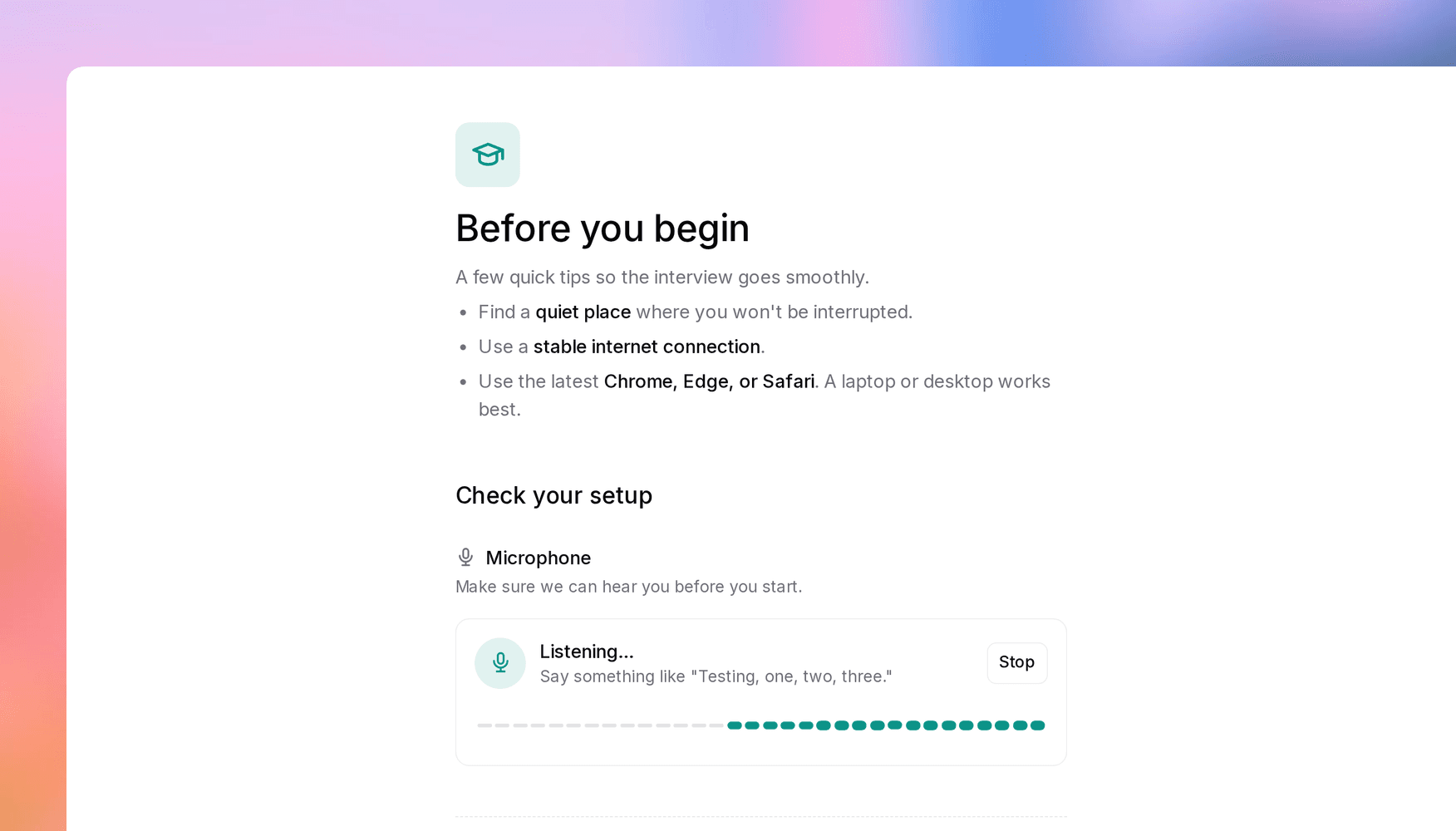
First, your setup tips. You write them in a rich-text editor with headings, lists, bold text, and links, and new tutorial pages start with a short default: find a quiet place, use a stable connection, and use a recent browser.
Below your tips, under Check your setup, participants go through the checks you turned on:
- Microphone test: participants click Test and say a few words while a level meter shows what Versive hears. After a few seconds they get a clear result (working, too quiet, no sound at all, or blocked by the browser) and, if something's off, what to do about it.
- Timer colors: if your AI or Exploratory questions use the duration tracker, participants learn what the yellow, green, and red timer means before they see it mid-answer.
- Troubleshooting: the no-audio, low-audio, and transcription messages participants might run into, what to do about each, and a link to your support email.
In studies where participants answer out loud, you can also turn on Require a working microphone to continue, which keeps participants on the page until the test passes. Leave it off if some participants may type their answers instead.
The checks appear in the participant's language, and the page uses your study's colors.
Setting it up
Turn it on under Settings → General, or ask the Versive Assistant to add one. The page then shows up as Before you begin in the question list, where you edit the copy, pick the checks, and see it as participants will in the Preview tab.
In a multi-language study, the tutorial page is translated along with the rest of the study, and it's copied when you duplicate a study or create one from a template. If you build studies through the API or an AI app over MCP, you can set it up there too.
Participants only see the page when they start a new interview. Someone who leaves and comes back goes straight back to where they left off.
Good to know
The tutorial page holds text, not images or videos. The default copy is in English, so if your study runs in another language, rewrite it before you turn the page on. The tutorial page docs cover every option.
Get in touch
We're continuing to build features that help you learn faster. If you have any questions or feature requests, reach out to us at [email protected]. Want to give it a try? Create a free account, no credit card required.

Eric Li, Co-Founder, Versive