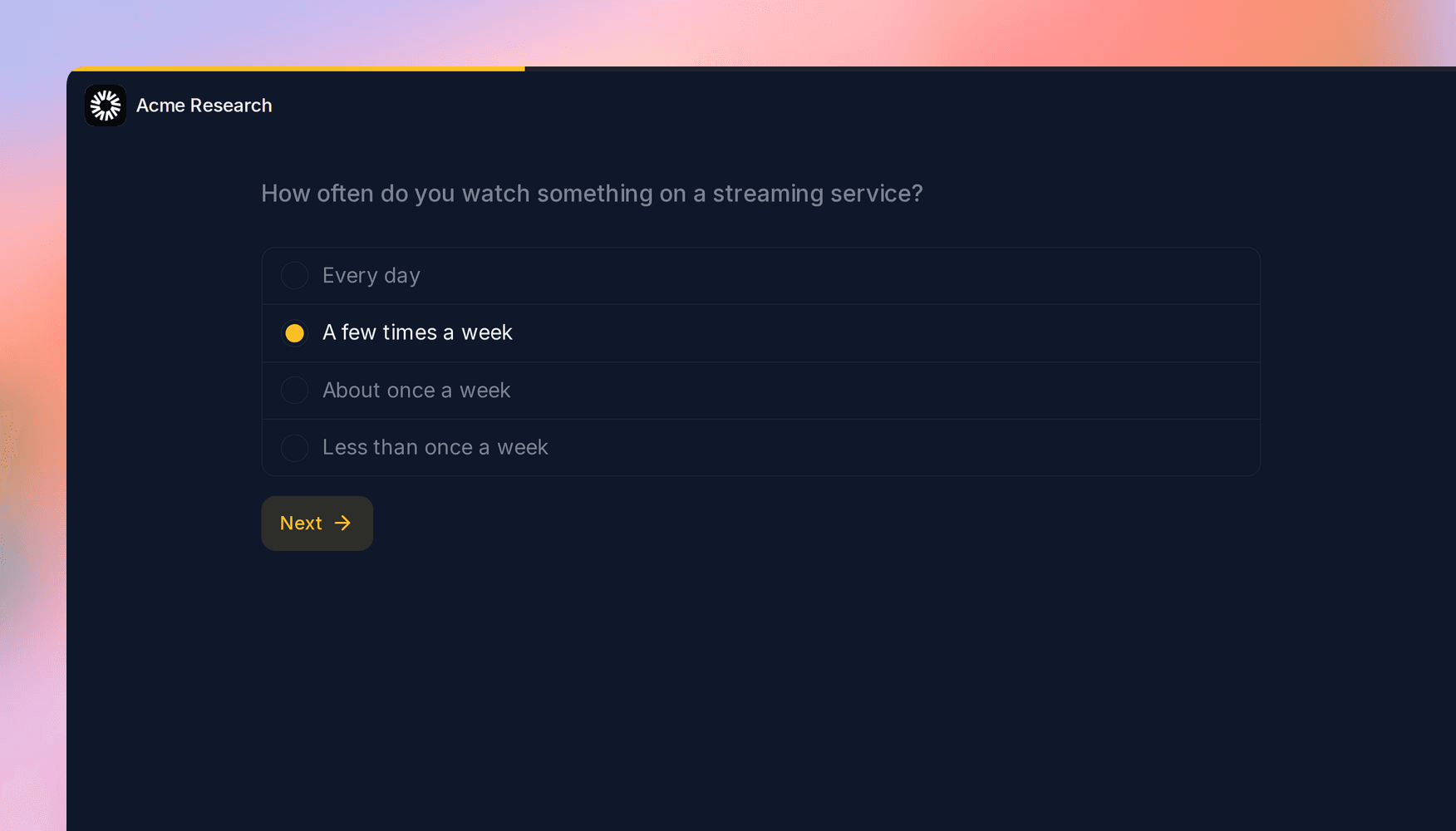
Introducing study colors and defaults: every new study starts on brand
Choose the text, primary, and background colors participants see, match the app you embed a study in, and give every new study your colors, languages, and response limit.
Participants see your study before they read a single question. If your product has a dark interface or a palette of its own, a white page with our teal buttons can feel like someone else's survey, especially when the study is embedded in your app. And if your team uses the same logo, languages, and response limit on every study, setting them up one study at a time gets old.
Today we're launching study colors and more study defaults. Choose the colors participants see, and decide what every new study in your organization starts with.
Your colors on every participant screen
Each study's Branding tab now has three colors:
- Text: the color of everything participants read.
- Primary: buttons, selected answers, and the progress bar.
- Background: the page behind it all.
Every participant screen follows them: the welcome page, every question type, the voice screens, and the closing and screen-out messages. Borders, cards, and muted text are mixed from your text and background colors, and button text turns black or white, whichever reads better on your primary color. There's no separate dark mode to manage. For a dark look, pick a dark background and a light text color, and your logo gets a light tile so it stays visible.
An Accessibility check under the colors tells you when text is hard to read on the background, or when the primary color doesn't stand out from it. It follows WCAG 2.2 AA and never blocks a save. A colors button on the editor's Preview tab lets you try colors right next to the question you're working on. A study with no text or background color looks exactly as it did before.
Match the app you embed it in
If you show studies inside your product with the embed SDK, you can now pass colors for each embed, in code or with attributes on the script tag. Each color you pass replaces the study's for that embed only. If your app has a light and a dark mode, pass the active palette when you open a study, and it matches whichever one your user is in. The embedding docs have an example.
More defaults for every new study
In September, owners and admins got study defaults for a logo and a brand color. Organization > Settings > Study defaults now covers more of what your team sets up every time:
- Colors: text, primary, and background.
- Study title: the name shown next to your logo, like your team's or company's name.
- Default language and supported languages: a team in Germany can start every study in German, with English and French offered to participants once the study is translated.
- Total completes: a response limit, so new studies stop accepting participants after a set number of completes.
Defaults are copied in when a study is created, whether that's in the dashboard, through the API, with the Versive Assistant, or from an AI app over MCP. Anything the creator picks wins, and anyone who can edit a study can still change these settings on that study. Duplicated studies and studies created from a template keep their source's settings. The Assistant and AI apps are told the study's default language, so the questions they write come out in it.
A supported language is offered to participants once the study has been translated, which happens the first time you save it in the builder. Voice studies stay in English.
Restyle the studies you already have
Changing a default leaves existing studies alone. When your brand changes, owners and admins can click Apply to existing studies to write the saved logo and colors into all of the organization's studies at once. Before anything changes, a confirmation shows how many studies will be updated. A blank default leaves each study's own value in place, archived studies are skipped, and titles, languages, and response limits aren't touched. It can't be undone, so check the confirmation.
What's not included yet
There's no second logo for dark backgrounds yet, so your logo keeps its light tile. Colors apply to what participants see: the dashboard, reports, and emails keep Versive's look, and websites and Figma prototypes shown in a task keep their own. The branding and study defaults docs have the details.
Get in touch
We're continuing to build features that help you learn faster. If you have any questions or feature requests, reach out to us at [email protected]. Want to give it a try? Create a free account, no credit card required.

Eric Li, Co-Founder, Versive