Introducing quota cells: interlocked quotas for the sample you planned
Cap completes for combinations like women aged 18 to 34, across answers, number ranges, link values, and split-test arms, so every group in your sample fills to its own target.
Most survey samples start as a grid: so many women aged 18 to 34, so many men aged 35 to 54, and so on down the list. Quotas could already cap the whole study, each recruiting link, or each option of one question. They couldn't cap a combination, so filling the grid meant watching results and closing groups by hand.
Quota cells fill the grid for you. Split participants by up to three things, and every combination becomes a cell with its own limit.
How it works
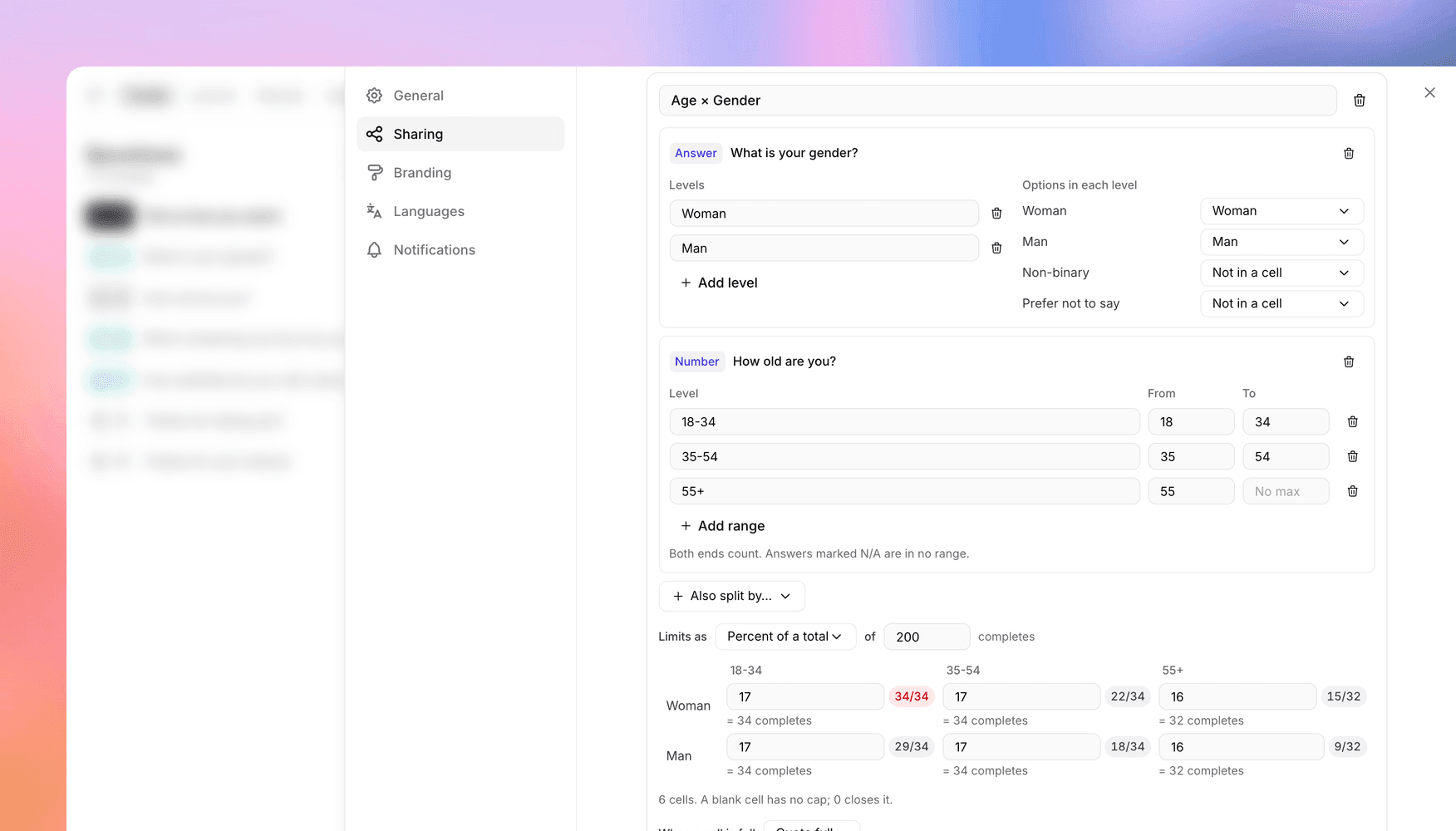
Say you're running a 200-person survey on streaming plans and want the sample to match your subscriber base by age and gender. Open the study settings, go to Sharing, and add a quota under Quota cells. Split it by your gender question and by your age question, with ranges of 18 to 34, 35 to 54, and 55 and over. That makes six cells. Set the limits as a percent of 200, type each cell's share, and the editor shows how many completes each one allows.
A quota can also split by a number range on a Number, Rating Scale, NPS, or Star Rating question, or by a value in the participant's link, such as the panel they came from. Split by the arms of a split test, and each version of an ad reaches the same mix of people. To cap several options together, put them in one level: Instagram, WhatsApp, and Facebook under a cap of 50, where someone who uses two of them counts once.
When a cell fills
Versive checks each participant as soon as it knows every answer a cell needs, so someone in a full cell stops right after that answer instead of finishing the study first. You choose what happens next. Screen out sends them to your usual screen-out message or redirect. Quota full marks the interview as quota full and sends them to your panel's quota-full link, or shows the quota's own message.
The quota editor shows the completes next to each cell's limit and turns a cell red once it's full. In Results, filter by Quota cell to see one group's responses, and a Quota full label marks the people a full cell stopped. The CSV export names each participant's cell.
As with other quotas, only completed interviews count toward a cell, and a cell never stops a preview or a simulation. Quota cells work alongside your study and question quotas, in every interview mode including voice. You can also set them up through the API, MCP, or the Versive Assistant in the study editor. The quota cells docs walk through each setting.
Get in touch
We're continuing to build features that help you learn faster. If you have any questions or feature requests, reach out to us at [email protected]. Want to give it a try? Start a free trial and start running research in minutes.

Eric Li, Co-Founder, Versive